· iPhone
Sprig 1.5: Make what matters stand out
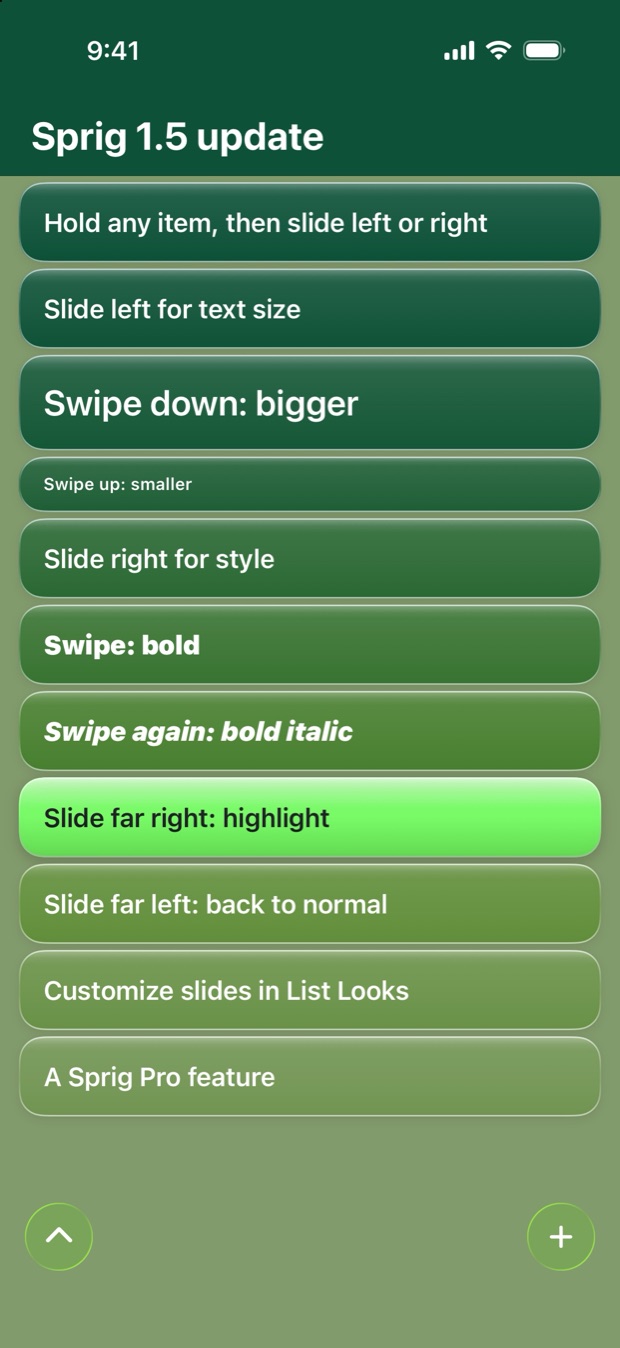
Sprig 1.5 lets you make any item in a list bigger, smaller, bold, bold italic or highlighted. You just hold the item and slide it.
Hold, slide, swipe
Hold any item, then slide it left or right. Keep your finger down and swipe up or down to change how it looks. You see the change right away, and it only sticks when you let go.
- Text size: slide left, then swipe down for bigger text or up for smaller. The row grows and shrinks with it.
- Style: slide right, then swipe to step through bold and bold italic.
- Highlight: slide right and keep pushing to highlight an item.
- Back to normal: slide all the way left and the item goes back to how it started.
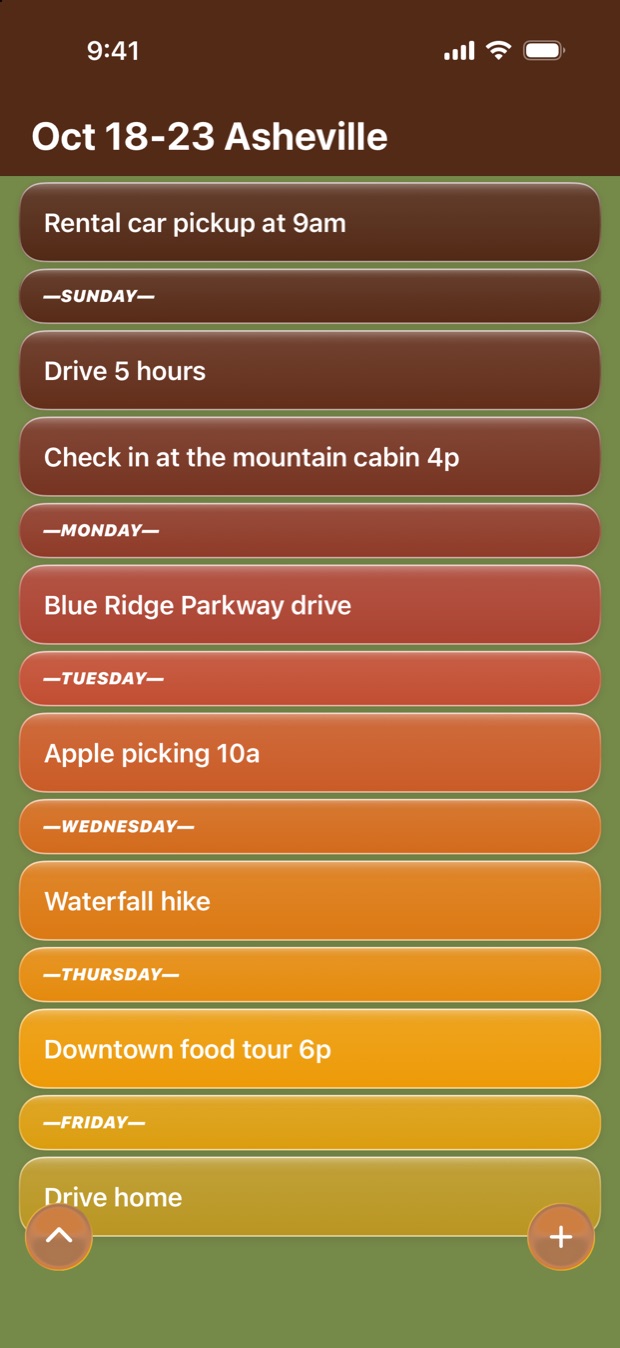
I use the smaller bold italic for the days in a trip plan, with the plans in normal text under each day. It makes a long trip list a lot easier to read.
Settings
In Settings → List Looks you can pick how highlights look (Theme bright, Inverted or Highlighter) and what each slide does.
List titles get their own size, separate from the items, and the default list look now has its own title font and size too.
Sprig also opens straight to the list you were last using.
The 1.5 update list
Sprig 1.5 adds a list called "Sprig 1.5 update" with one line for each slide. Each line is already styled the way that slide makes it look, so you can see what they all do.
The slides are part of Sprig Pro. It's a one-time purchase, and it also unlocks every theme, per-list looks and all the app icons.
← All posts